Nov 2, 2010 Update: Microsoft releases a toolkit which includes a control ListPicker–which my article tried to emulate. I’ve downloaded it and it looks good so far. I no longer need to employ a separate page to list options. The concept in this article is still useful if you want to allow selecting multiple items. As far as I know, ListPicker control won’t let you set up such thing.
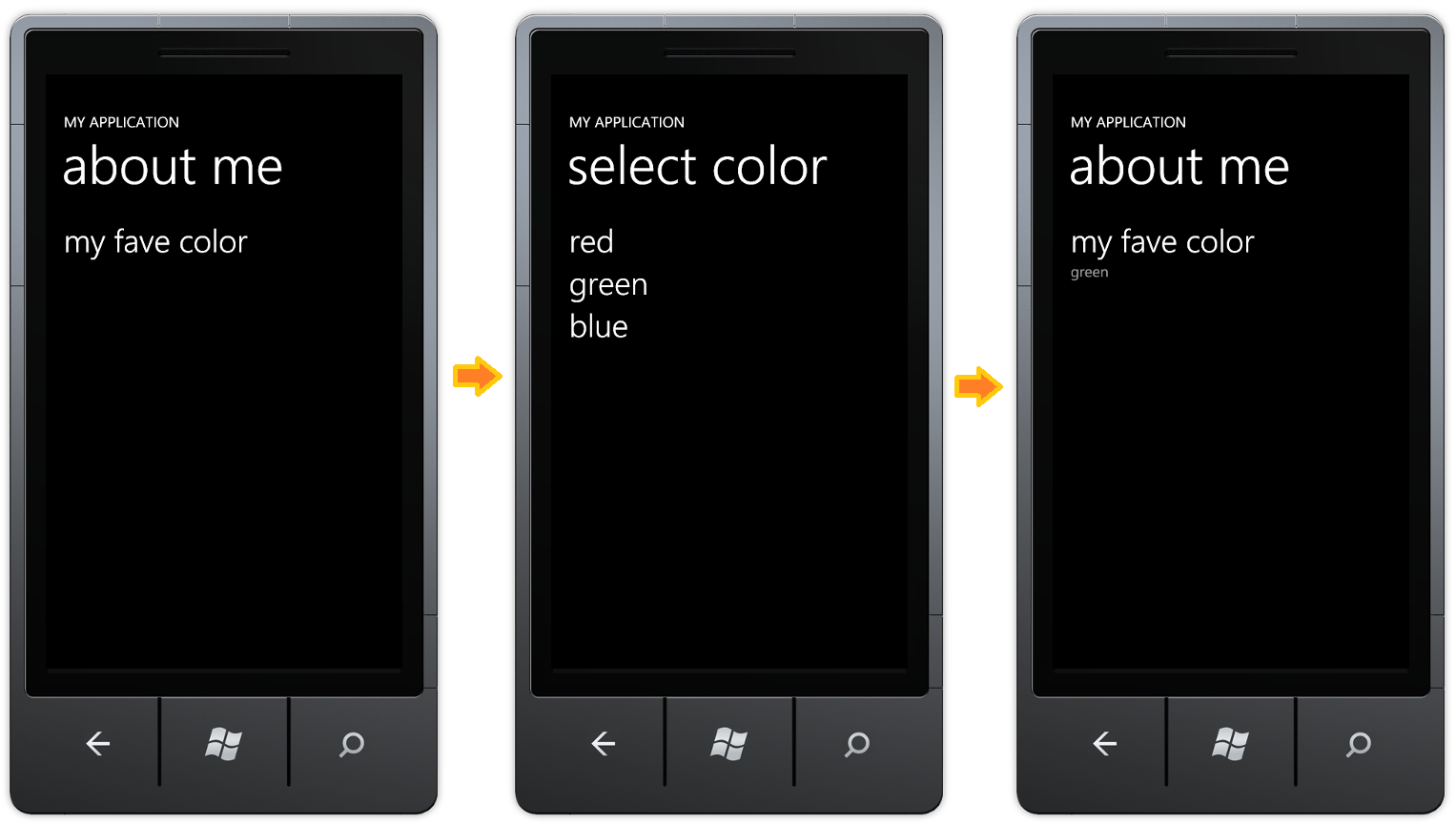
When presenting an input with a list of options, normally we will see a drop down menu (or a list box, combo box, and the like) or a child window employed to present the options. On Windows Phone 7, there aren’t such controls (there are hacks and workarounds, though), so one of the methods to display the options is to present them in another page.
Passing Value from a Child to a Parent Page
Say we have a page (
MainPage.xaml) where a user could select his favorite color. The following is the (portion of) XAML code.
    <!--LayoutRoot is the root grid where all page content is placed-->
    <Grid x:Name="LayoutRoot" Background="Transparent">
        <Grid.RowDefinitions>
            <RowDefinition Height="Auto"/>
            <RowDefinition Height="*"/>
        </Grid.RowDefinitions>

        <!--TitlePanel contains the name of the application and page title-->
        <StackPanel x:Name="TitlePanel" Grid.Row="0" Margin="12,17,0,28">
            <TextBlock x:Name="ApplicationTitle" Text="MY APPLICATION" Style="{StaticResource PhoneTextNormalStyle}"/>
            <TextBlock x:Name="PageTitle" Text="about me" Margin="9,-7,0,0" Style="{StaticResource PhoneTextTitle1Style}"/>
        </StackPanel>

        <!--ContentPanel - place additional content here-->
        <Grid x:Name="ContentPanel" Grid.Row="1" Margin="12,0,12,0">
            <StackPanel>
                <toolkit:GestureService.GestureListener>
                    <toolkit:GestureListener Tap="GestureListener_Tap" />
                </toolkit:GestureService.GestureListener>
                <TextBlock Text="my fave color" Style="{StaticResource PhoneTextExtraLargeStyle}" />
                <TextBlock x:Name="txtFaveColor" Style="{StaticResource PhoneTextSubtleStyle}" />
            </StackPanel>
        </Grid>
    </Grid>
When the user taps on my fave color, he will be redirected to another page (ChildPage.xaml) where he can specify his selection. In the parent page (MainPage.xaml), we need to specify a public property which the child page will set. The following is how the public property FaveColor defined in the code behind (MainPage.xaml.cs)
    public partial class MainPage : PhoneApplicationPage
    {
        public string FaveColor;

        public MainPage()
        {
            InitializeComponent();
        }

        private void GestureListener_Tap(object sender, GestureEventArgs e)
        {
            this.NavigationService.Navigate(new Uri("/ChildPage.xaml", UriKind.Relative));
        }
    }
The child page is to set the property FaveColor of parent page within the OnNavigatedFrom event where the parent page context is available.
    public partial class ChildPage : PhoneApplicationPage
    {
        private string selectedColor;

        public ChildPage()
        {
            InitializeComponent();
        }

        private void lstColors_Tap(object sender, GestureEventArgs e)
        {
            if (lstColors.SelectedItem == null)
                return;

            selectedColor = ((TextBlock)lstColors.SelectedItem).Tag.ToString();

            NavigationService.GoBack();
        }

        protected override void OnNavigatedFrom(System.Windows.Navigation.NavigationEventArgs e)
        {
            if (e.Content is MainPage &&
                selectedColor != null)
            {
                (e.Content as MainPage).FaveColor = selectedColor;
            }

            base.OnNavigatedFrom(e);
        }
    }
Now, we can use the the property FaveColor as the content of the control which displays user’s favorite color.
    public partial class MainPage : PhoneApplicationPage
    {
        public string FaveColor;

        public MainPage()
        {
            InitializeComponent();
            this.Loaded += new RoutedEventHandler(MainPage_Loaded);
        }

        void MainPage_Loaded(object sender, RoutedEventArgs e)
        {
            txtFaveColor.Text = FaveColor;
        }

        private void GestureListener_Tap(object sender, GestureEventArgs e)
        {
            this.NavigationService.Navigate(new Uri("/ChildPage.xaml", UriKind.Relative));
        }
    }
This technique is originally found in Charles Petzold’s “Programming Windows Phone 7.”